One Button, Four Beavers: A 3D Adventure You Can Direct
The beavers rush to the dam. Captain Duck rides the rapids. Explore eight scenes, compare three camera setups and direct a shot of your own.
You pressed flush. Inside the tank, four beavers jolted awake. One grabbed a whistle. Three raced to the dam. Captain Duck? Already heading for the rapids.
This short 3D animation turns an ordinary toilet tank into a tiny world. Let's unpack the film through its eight scenes—then put you behind the camera.
The first four scenes: calm turns to chaos
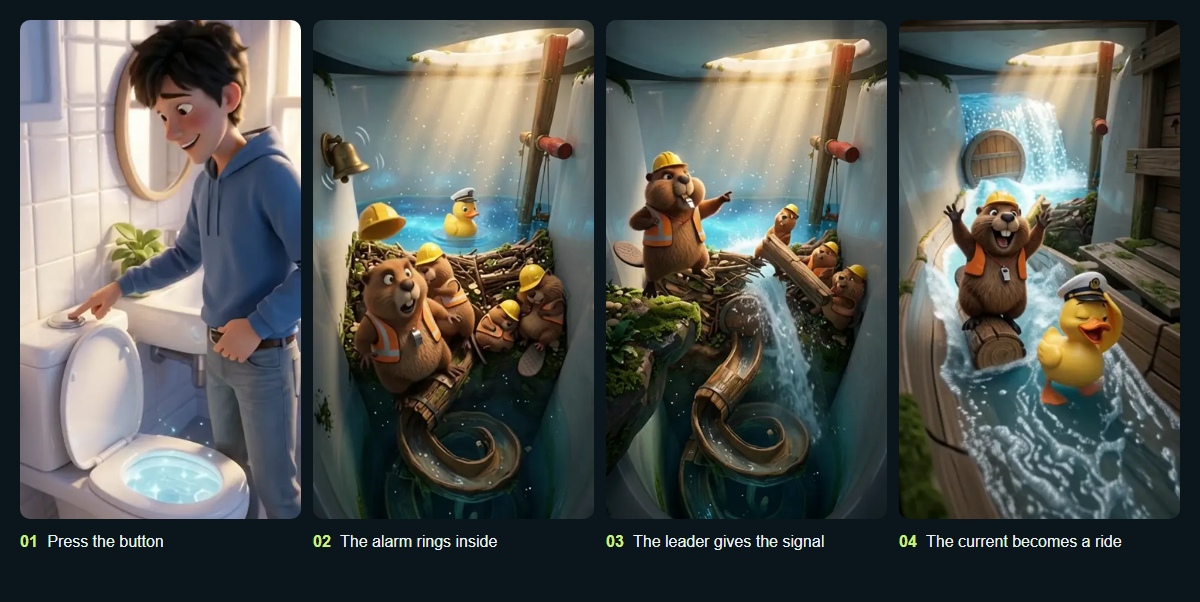
01 — Set it off. Show the button. Let the audience understand which everyday action starts the adventure inside.
02 — Reveal the world. The beavers are sleeping. The duck is floating. Hold that quiet moment; it makes the alarm land.
03 — Pick your hero. The whistle-wearing leader steps forward. Lower the camera and even a small beaver can look like the boss of a major operation.
04 — Deliver the fun. The dam opens! A work scene becomes a water-slide adventure. Follow the characters so we see their excitement, not just rushing water.
One event, three ways to tell it
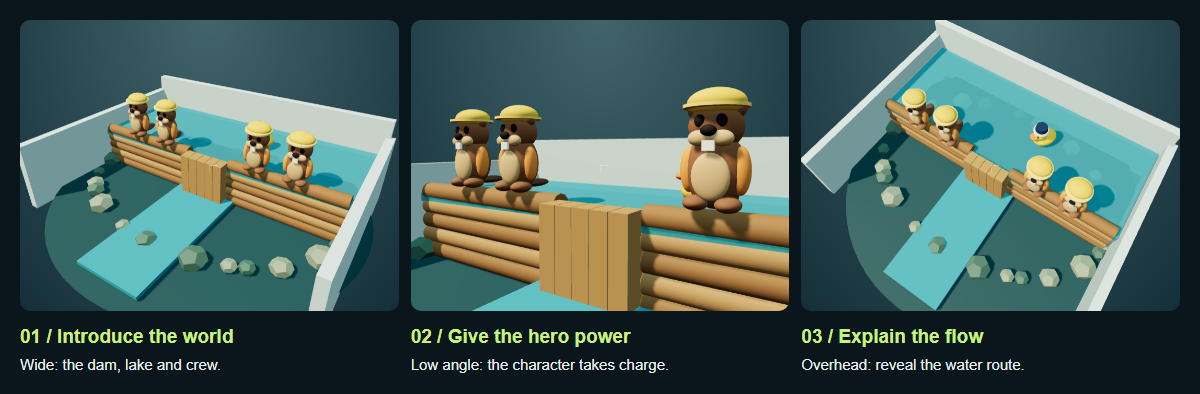
Every frame contains the same dam, four beavers and water. What changes is the information you notice:
- “Where are we?” Choose Wide. Show the lake, crew and dam together.
- “Who's in charge?” Choose Low angle. Give the leader's decision more weight.
- “Where does the water go?” Choose Overhead. Make the layout easy to read.
Choose an angle to answer one of these questions. The shot should have a job.
Your turn in the director's chair
A 30-second challenge: Set the water cycle to 40%. Choose Low angle, then Overhead. The event stays the same. Which view explains the hero, and which explains the mechanism?
Next, compare Orbit with Dolly in. Orbit moves the camera in an arc around the dam; Dolly in physically moves it forward.
The workshop is a simple 3D study model inspired by the film. It does not generate video. It builds a shot prompt from your chosen angle and movement, ready to copy. Pause stops the water cycle; choose Static to stop the camera too.
Three ready-to-try shots
A. “Operation underway!”
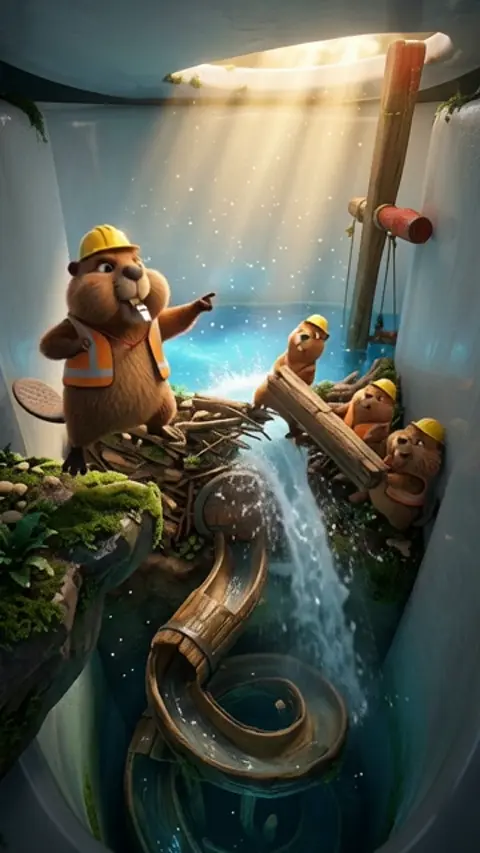
Choose: Low angle + Static. Strong character action does not require constant camera movement.
View the wooden dam from water level. The leader, wearing a yellow hard hat, blows his silver whistle and points ahead. Behind him, three beavers pull out a large log together; the first drops of water leak through the gap. Locked-off camera. Exactly four beavers, orange work vests. Soft cinematic light, stylized 3D animation. No text or logos.
B. “Catch me if you can!”
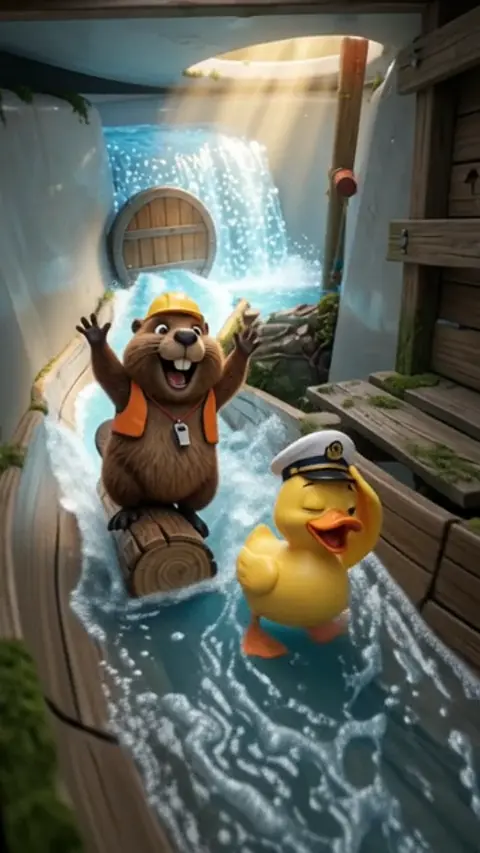
Choose: A tracking shot that follows the characters. State both the camera's direction and its subject.
A beaver rides a log down a curving water slide, with a yellow rubber duck wearing a captain's hat beside him. Sparkling clean water carries them downhill. The camera moves backward ahead of them at the same speed, keeping their faces in frame. Joyful movement, bright water droplets. Preserve the characters' appearance. No dialogue or text.
C. “How does this thing work?”
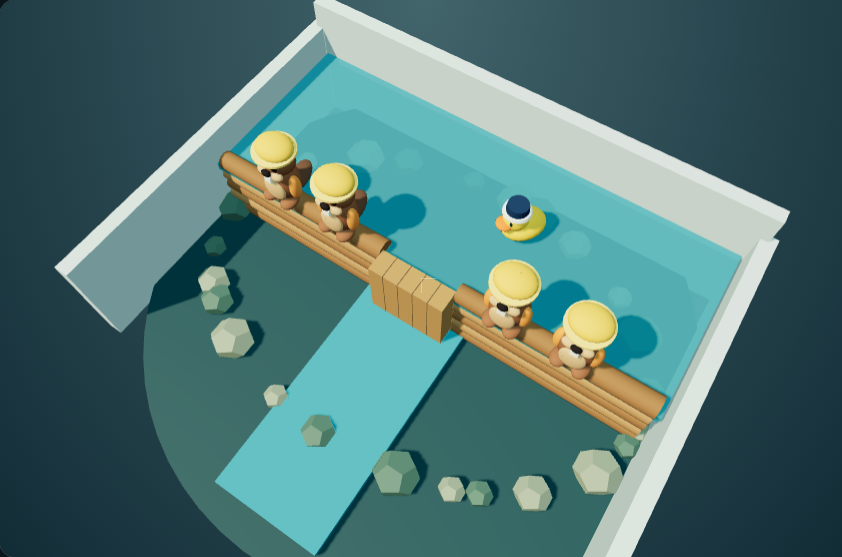
Choose: Overhead + Static. Explain the water's route rather than a character's feelings.
Look down at the miniature lake inside the tank. The wooden dam gate opens, and blue water flows from the lake into the narrow channel. Keep the lake, gate and channel in the same frame. Locked-off camera, clear direction of flow. Four beavers in yellow hard hats stand on the dam. Clean, stylized 3D look. No text.
Try the difference: Keep the same reference image and character description. Change only the camera sentence. That makes it easier to see which choice changed the result. These prompts are starting points for new experiments; they do not promise an exact recreation of the film.
The final four scenes: rebuild and close the loop
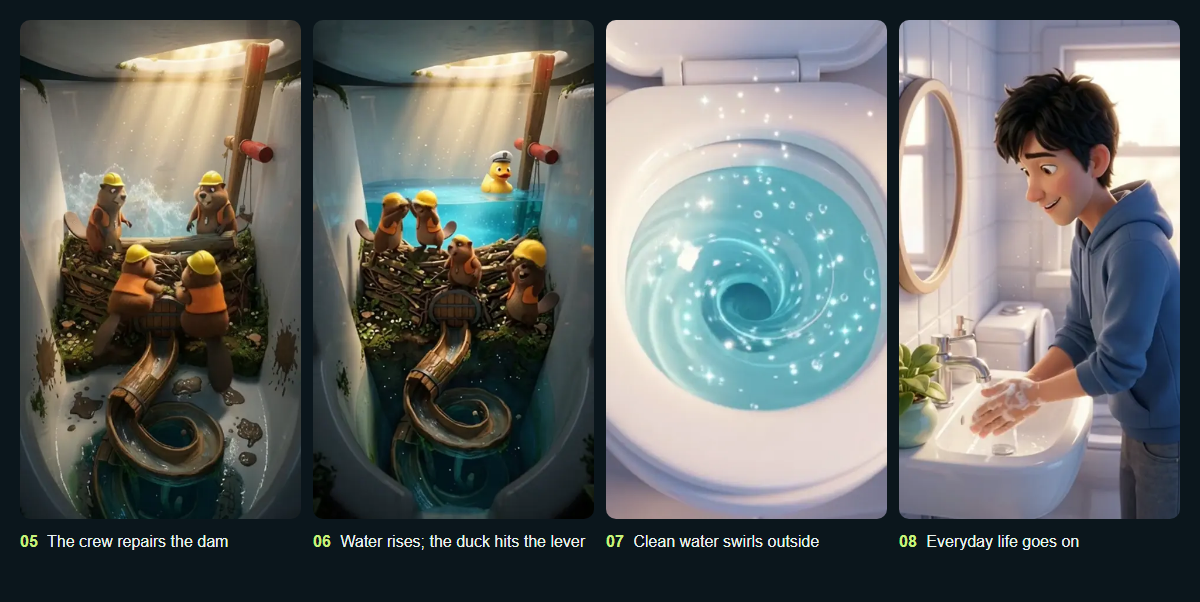
05 — Share the work. One beaver carries, one places the log and two seal the gaps. Give each character a clear task so the scene feels busy without becoming confusing.
06 — Show cause and effect. Water rises; the duck bumps the lever. Keep the water level and lever together in frame so the audience makes the connection.
07 — Return outside. All that chaos inside produces a simple swirl of clean water outside. An overhead shot makes its circular motion easy to read.
08 — End on everyday life. The man washes his hands. The enormous adventure inside has barely interrupted the world outside.
Build a tiny world of your own
Define the characters first, the setting next and the movement last. This project uses five reference groups: the man, the four-beaver crew, Captain Duck, the bathroom and the tank interior.
Keep these consistent: Four beavers, yellow hard hats and orange vests. The leader keeps his whistle; the duck keeps his captain's hat. Check the middle of each clip as carefully as its first frame.
A new idea: Imagine tiny baristas working inside a coffee machine. Introduce their factory with a wide shot, give the head barista a low-angle entrance and show the coffee's route from overhead. A different world; the same camera logic.
Frequently asked questions
Does the workshop generate a video?
No. The simple Three.js scene lets you compare camera angles, movement and a water cycle. It builds a shot prompt you can take to a video tool.
Is a dolly-in the same as changing the field of view?
No. A dolly-in moves the camera through the scene. Changing the field of view changes how much the camera sees from the same position. The workshop uses physical forward movement for Dolly in.
How can I keep the beavers consistent?
Prepare a reference showing all four beavers together. Reuse it with the same cast count, outfits and accessories in the relevant scenes. Check the first, middle and last frames of each clip.
Can I use the workshop on my phone?
Yes, with a current browser that supports WebGL. The scene and essential controls fit inside the embed without internal scrolling. Tap the angle buttons, scrub the timeline and copy your prompt.
Why does Copy prompt sometimes select the text instead?
Embedded pages may not have permission to write to your clipboard. In that case the workshop selects the prompt. Press Ctrl+C, or choose Copy from the text selection on your phone.